




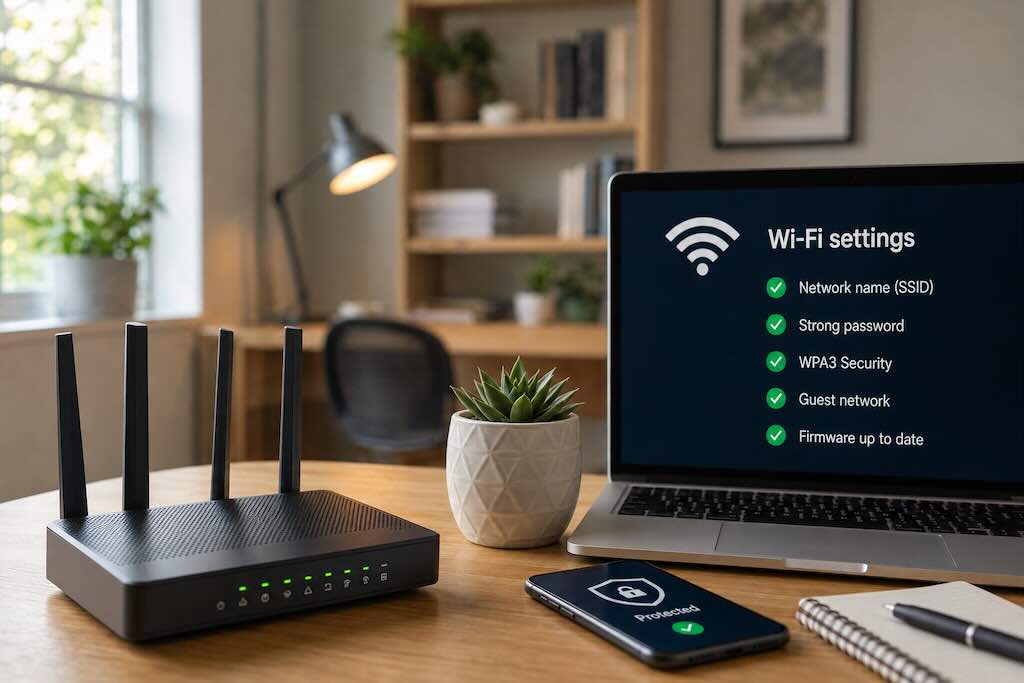
Your home Wi-Fi quietly carries a remarkable amount of your life. Laptops, phones, televisions, speakers, game consoles and smart-home devices may all pass through the same router, often without receiving much attention once the initial setup is finished.
That makes the router worth treating as more than a box you restart when Netflix stops loading. A few sensible settings can improve both the security and reliability of a home network without turning your living room into an IT department.
Start With the Router’s Admin Password
Your Wi-Fi password and router administrator password serve different purposes. The first lets devices join the wireless network; the second controls access to the router’s settings.
If your router still uses a default or easily guessed administrator password, change it. Choose a strong, unique password that isn’t reused for another account. The U.S. Cybersecurity and Infrastructure Security Agency recommends using strong passwords and a password manager to help create and store them.
Use Modern Wi-Fi Security
Open your router’s settings and check which wireless security protocol it uses. WPA3 is the newer standard when supported by your router and devices. WPA2 remains common for compatibility with older equipment, but outdated options such as WEP should not be used.
Your Wi-Fi password should also be long, unique and difficult to guess. Avoid names, addresses, birthdays and familiar phrases that someone could reasonably associate with your household.
Keep Your Router Updated
Routers run software or firmware just like other connected technology. Manufacturers may issue updates to correct security vulnerabilities, improve stability or add functionality.
Check whether your router installs updates automatically. If it doesn’t, periodically check the manufacturer’s official support information for your exact model rather than downloading firmware from an unfamiliar third-party website.
An older router that no longer receives security updates deserves particular attention. At that point, replacement can be more sensible than continuing to rely on unsupported hardware.
Give Your Wi-Fi a Neutral Name
The visible name of your wireless network is its SSID. There’s no need to make it personally revealing.
Avoid putting your full name, apartment number or other identifying information in it. Changing a default SSID that reveals the router model can also make the network a little less informative to anyone scanning nearby connections.
Don’t mistake this for a major security measure, however. A quirky network name won’t protect an insecure router. Strong authentication, current software and appropriate encryption matter considerably more.
Consider a Guest Network for Visitors and Smart Devices
If your router supports guest networking, it can be useful for keeping visitors away from the main network used by your personal computers and other sensitive devices.
Some routers also offer ways to separate smart-home or Internet of Things devices. This can be worthwhile because the security and update practices behind connected cameras, plugs, appliances and other inexpensive devices vary considerably.
Exactly what isolation a guest network provides depends on the router, so check its settings rather than assuming every guest mode works identically.
Turn Off Features You Don’t Need
Router settings can contain convenience features that aren’t necessary in every home. Remote administration, for example, allows router settings to be accessed from outside the home network. If you don’t use it, there is little reason to leave it enabled.
It is also worth reviewing features such as Wi-Fi Protected Setup (WPS) and other sharing or remote-access options. The objective isn’t to disable settings at random. It is to understand which services are active and switch off unnecessary access points.
Check Which Devices Are Connected
Most modern routers provide a list of devices currently or recently connected to the network. Looking at it occasionally can reveal forgotten gadgets as well as devices you don’t recognize.
Don’t immediately assume an unfamiliar name means an intruder. Phones and smart devices can appear under obscure manufacturer names, and some use privacy features that make identification less obvious.
If you genuinely cannot account for a connected device, changing the Wi-Fi password and reconnecting trusted equipment can help remove unauthorized access. It is also a good moment to review the router’s other security settings.
Put the Router Where Wi-Fi Can Actually Reach You
Security isn’t the only concern. A badly positioned router can leave rooms with weak coverage and make a perfectly adequate internet connection feel unreliable.
A reasonably central, open and elevated location is usually preferable to hiding the router inside a cabinet or placing it at one extreme end of the home. Thick walls and certain building materials can weaken wireless signals, while other electronics may contribute to interference.
Don’t deliberately weaken coverage simply to prevent the signal from reaching beyond your walls. Wi-Fi signals routinely extend outside a home. Proper encryption and a strong password are what prevent other people from joining the network.
Use Ethernet Where It Makes Sense
A wired Ethernet connection can be useful for desktop computers, televisions, game consoles and other stationary equipment where consistent speed and low latency matter.
Ethernet shouldn’t be treated as a substitute for securing the router, however. Wired devices still belong to your network and still need sensible security practices.
If you’re installing permanent cabling through walls, ceilings or other building spaces, use cable appropriate for the installation and follow applicable electrical and building requirements. For anything beyond a straightforward patch cable, professional installation may be worth considering.
Don’t Forget the Devices Behind the Router
A secure router can’t compensate for every vulnerable device connected to it. Keep computers and phones updated, remove software you no longer use and enable multi-factor authentication on important online accounts where available.
Smart-home products deserve the same attention. Change default passwords where applicable, install available updates and retire connected devices that are no longer supported when their function makes continued use a security concern.
A Safer Network Is Mostly About Maintenance
Home-network security doesn’t require constant monitoring. The strongest habits are fairly quiet ones: use modern encryption, choose unique passwords, install updates, understand what is connected and periodically revisit settings you haven’t looked at since the router came out of its box.
Do those things well and your network becomes both less inviting to unwanted access and easier to depend on when you actually need it.
FAQ
How can I tell whether my home Wi-Fi is secure?
Check that your router uses WPA3 or an appropriate WPA2 configuration, has strong and unique Wi-Fi and administrator passwords, receives security updates and isn’t exposing remote-access features you don’t need.
Should I hide my Wi-Fi network name?
Hiding the SSID isn’t a substitute for proper security and provides limited protection. Focus instead on strong authentication, modern encryption and keeping the router updated.
Is Ethernet safer than Wi-Fi?
A wired connection removes the wireless link for that particular device and can provide excellent reliability, but it doesn’t make the wider network automatically secure. Router security, software updates and device security still matter.
How often should I update my router?
Enable automatic firmware updates when your router supports them. Otherwise, periodically check the manufacturer’s official support information. If your router has reached end of support and no longer receives security fixes, consider replacing it.